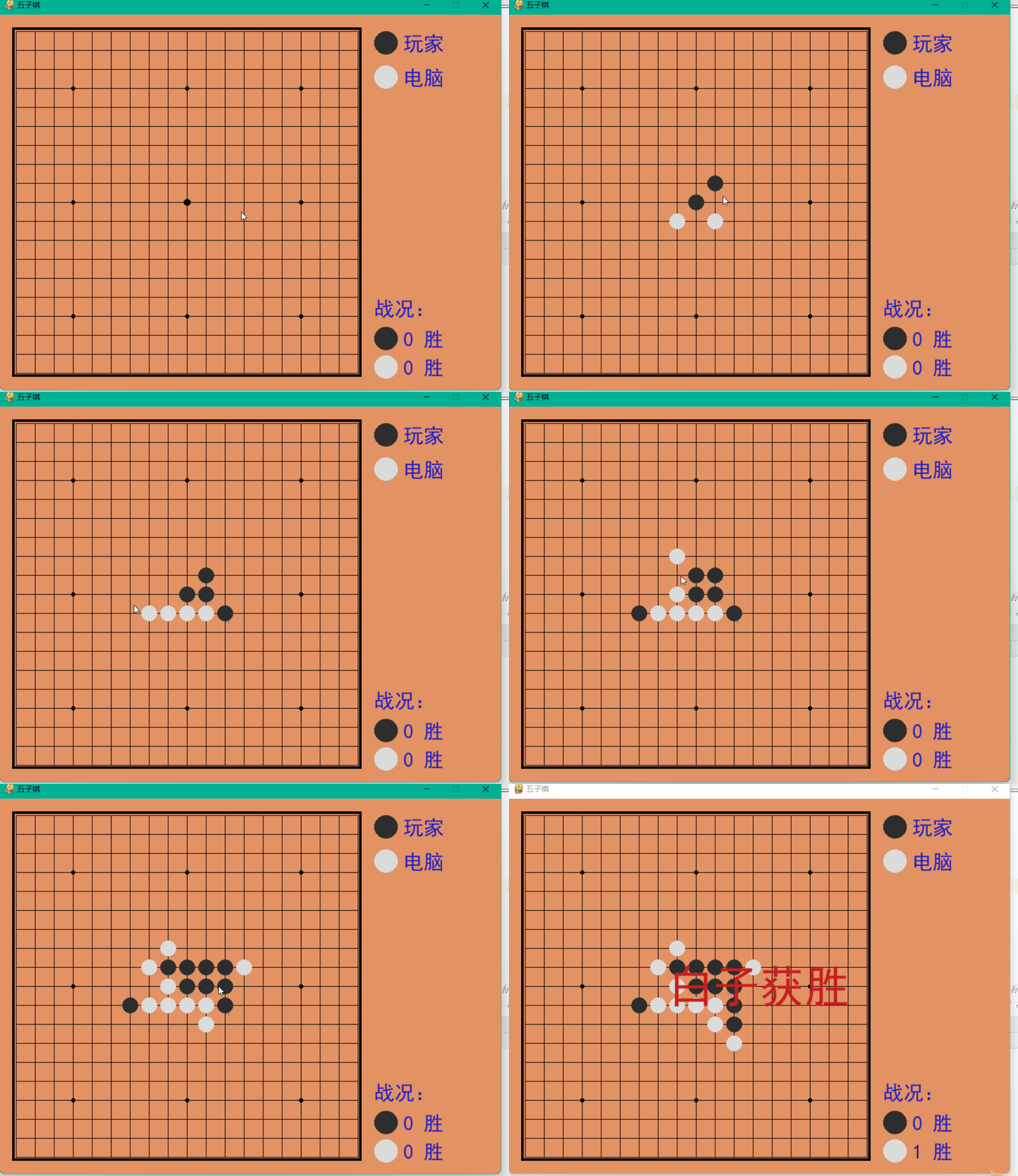
人人对战
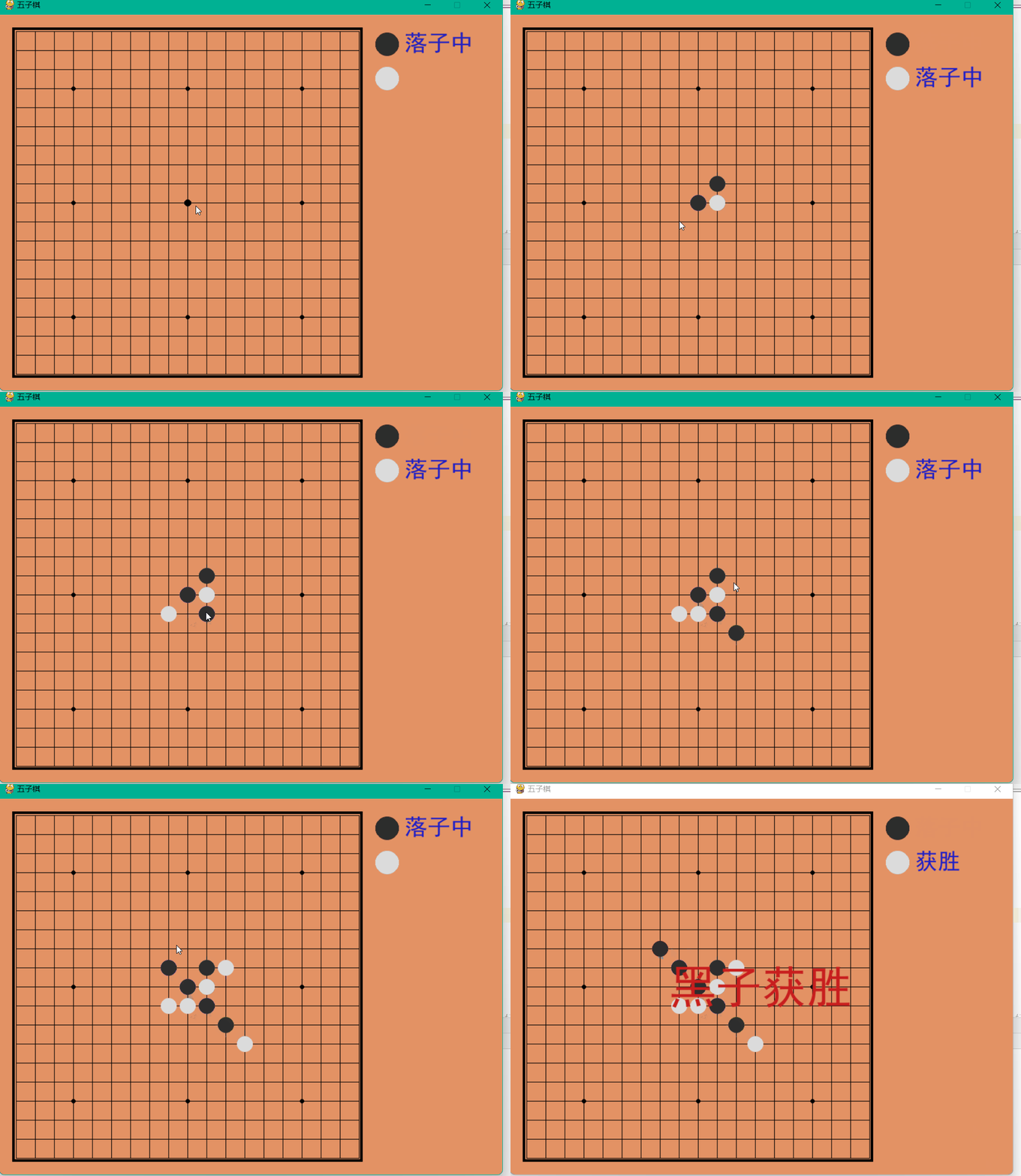
游戏规则:p1为黑子,p2为白子,黑子先手,一方达到五子相连即为获胜。
动态演示
源码分享
cheackboard.py
定义黑白子,落子位置以及获胜规则。
from collections import namedtuple

Chessman = namedtuple('Chessman', 'Name Value Color')
Point = namedtuple('Point', 'X Y')

BLACK_CHESSMAN = Chessman('黑子', 1, (45, 45, 45))
WHITE_CHESSMAN = Chessman('白子', 2, (219, 219, 219))

offset = [(1, 0), (0, 1), (1, 1), (1, -1)]


class Checkerboard:
    def __init__(self, line_points):
        self._line_points = line_points
        self._checkerboard = [[0] * line_points for _ in range(line_points)]

    def _get_checkerboard(self):
        return self._checkerboard

    checkerboard = property(_get_checkerboard)

    # 判断是否可落子
    def can_drop(self, point):
        return self._checkerboard[point.Y][point.X] == 0

    def drop(self, chessman, point):
        """
        落子
        :param chessman:
        :param point:落子位置
        :return:若该子落下之后即可获胜,则返回获胜方,否则返回 None
        """
        print(f'{chessman.Name} ({point.X}, {point.Y})')
        self._checkerboard[point.Y][point.X] = chessman.Value

        if self._win(point):
            print(f'{chessman.Name}获胜')
            return chessman

    # 判断是否赢了
    def _win(self, point):
        cur_value = self._checkerboard[point.Y][point.X]
        for os in offset:
            if self._get_count_on_direction(point, cur_value, os[0], os[1]):
                return True

    def _get_count_on_direction(self, point, value, x_offset, y_offset):
        count = 1
        for step in range(1, 5):
            x = point.X + step * x_offset
            y = point.Y + step * y_offset
            if 0 <= x < self._line_points and 0 <= y < self._line_points and self._checkerboard[y][x] == value:
                count += 1
            else:
                break
        for step in range(1, 5):
            x = point.X - step * x_offset
            y = point.Y - step * y_offset
            if 0 <= x < self._line_points and 0 <= y < self._line_points and self._checkerboard[y][x] == value:
                count += 1
            else:
                break

        return count >= 5
人人对战.py
立即学习“Python免费学习笔记(深入)”;
导入模块
如出现模块的错误,在pycharm终端输入如下指令。
安装相应模块可使用以下命令: ``` pip install 相应模块 -i https://pypi.douban.com/simple ```
import sys
import pygame
from pygame.locals import *
import pygame.gfxdraw
from 小游戏.五子棋.checkerboard import Checkerboard, BLACK_CHESSMAN, WHITE_CHESSMAN, Point
设置棋盘和棋子参数

SIZE = 30  # 棋盘每个点时间的间隔
Line_Points = 19  # 棋盘每行/每列点数
Outer_Width = 20  # 棋盘外宽度
Border_Width = 4  # 边框宽度
Inside_Width = 4  # 边框跟实际的棋盘之间的间隔
Border_Length = SIZE * (Line_Points - 1) + Inside_Width * 2 + Border_Width  # 边框线的长度
Start_X = Start_Y = Outer_Width + int(Border_Width / 2) + Inside_Width  # 网格线起点(左上角)坐标
SCREEN_HEIGHT = SIZE * (Line_Points - 1) + Outer_Width * 2 + Border_Width + Inside_Width * 2  # 游戏屏幕的高
SCREEN_WIDTH = SCREEN_HEIGHT + 200  # 游戏屏幕的宽

Stone_Radius = SIZE // 2 - 3  # 棋子半径
Stone_Radius2 = SIZE // 2 + 3
Checkerboard_Color = (0xE3, 0x92, 0x65)  # 棋盘颜色
BLACK_COLOR = (0, 0, 0)
WHITE_COLOR = (255, 255, 255)
RED_COLOR = (200, 30, 30)
BLUE_COLOR = (30, 30, 200)

RIGHT_INFO_POS_X = SCREEN_HEIGHT + Stone_Radius2 * 2 + 10
局内字体设置
def print_text(screen, font, x, y, text, fcolor=(255, 255, 255)):
    imgText = font.render(text, True, fcolor)
    screen.blit(imgText, (x, y))


def main():
    pygame.init()
    screen = pygame.display.set_mode((SCREEN_WIDTH, SCREEN_HEIGHT))
    pygame.display.set_caption('五子棋')

    font1 = pygame.font.SysFont('SimHei', 32)
    font2 = pygame.font.SysFont('SimHei', 72)
    fwidth, fheight = font2.size('黑方获胜')

    checkerboard = Checkerboard(Line_Points)
    cur_runner = BLACK_CHESSMAN
    winner = None
    computer = AI(Line_Points, WHITE_CHESSMAN)

    black_win_count = 0
    white_win_count = 0
落子循坏体
    while True:
        for event in pygame.event.get():
            if event.type == QUIT:
                sys.exit()
            elif event.type == KEYDOWN:
                if event.key == K_RETURN:
                    if winner is not None:
                        winner = None
                        cur_runner = BLACK_CHESSMAN
                        checkerboard = Checkerboard(Line_Points)
                        computer = AI(Line_Points, WHITE_CHESSMAN)
            elif event.type == MOUSEBUTTONDOWN:
                if winner is None:
                    pressed_array = pygame.mouse.get_pressed()
                    if pressed_array[0]:
                        mouse_pos = pygame.mouse.get_pos()
                        click_point = _get_clickpoint(mouse_pos)
                        if click_point is not None:
                            if checkerboard.can_drop(click_point):
                                winner = checkerboard.drop(cur_runner, click_point)
                                if winner is None:
                                    cur_runner = _get_next(cur_runner)
                                    computer.get_opponent_drop(click_point)
                                    AI_point = computer.AI_drop()
                                    winner = checkerboard.drop(cur_runner, AI_point)
                                    if winner is not None:
                                        white_win_count += 1
                                    cur_runner = _get_next(cur_runner)
                                else:
                                    black_win_count += 1
                        else:
                            print('超出棋盘区域')
画棋盘
def _draw_checkerboard(screen):
    # 填充棋盘背景色
    screen.fill(Checkerboard_Color)
    # 画棋盘网格线外的边框
    pygame.draw.rect(screen, BLACK_COLOR, (Outer_Width, Outer_Width, Border_Length, Border_Length), Border_Width)
    # 画网格线
    for i in range(Line_Points):
        pygame.draw.line(screen, BLACK_COLOR,
                         (Start_Y, Start_Y + SIZE * i),
                         (Start_Y + SIZE * (Line_Points - 1), Start_Y + SIZE * i),
                         1)
    for j in range(Line_Points):
        pygame.draw.line(screen, BLACK_COLOR,
                         (Start_X + SIZE * j, Start_X),
                         (Start_X + SIZE * j, Start_X + SIZE * (Line_Points - 1)),
                         1)
    # 画星位和天元
    for i in (3, 9, 15):
        for j in (3, 9, 15):
            if i == j == 9:
                radius = 5
            else:
                radius = 3
            # pygame.draw.circle(screen, BLACK, (Start_X + SIZE * i, Start_Y + SIZE * j), radius)
            pygame.gfxdraw.aacircle(screen, Start_X + SIZE * i, Start_Y + SIZE * j, radius, BLACK_COLOR)
            pygame.gfxdraw.filled_circle(screen, Start_X + SIZE * i, Start_Y + SIZE * j, radius, BLACK_COLOR)
运行框返回落子坐标
def _get_clickpoint(click_pos):
    pos_x = click_pos[0] - Start_X
    pos_y = click_pos[1] - Start_Y
    if pos_x < -Inside_Width or pos_y < -Inside_Width:
        return None
    x = pos_x // SIZE
    y = pos_y // SIZE
    if pos_x % SIZE > Stone_Radius:
        x += 1
    if pos_y % SIZE > Stone_Radius:
        y += 1
    if x >= Line_Points or y >= Line_Points:
        return None

    return Point(x, y)
执行文件
if __name__ == '__main__':
    main()
人机对战
动态演示