



react改变组件大小的方法:1、使用“React.cloneElement”加强包裹组件;2、在包裹的组件设置绝对定位,并在组件内加上四个可调整大小的拖动条;3、点击拖动条并进行拖动即会改变DragBox的大小。
本教程操作环境:Windows10系统、react18版、Dell G3电脑。
react怎么改变组件大小?
手写一个React拖拽调整大小的组件
一、实现流程
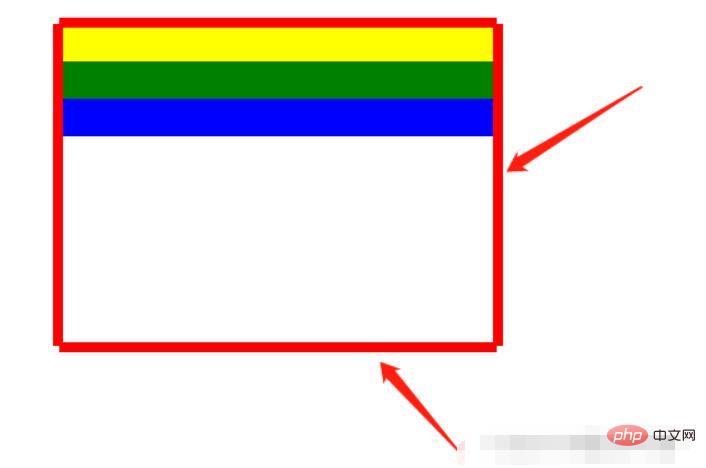
1.使用React.cloneElement加强包裹组件,在包裹的组件设置绝对定位,并在组件内加上四个可调整大小的拖动条,在点击拖动条并进行拖动时会改变DragBox的大小,如下:

2.使用:
{/* 使用DragBox拖动组件包裹需要调整大小的盒子 */}
二、代码
DragBox组件
import React, { Component, Fragment } from 'react';
import styles from "./DragBox.less";
/**
 * 拖拽的公共组件
 * 接收参数:
 *      dragAble:是否开启拖拽
 *      minWidth:最小调整宽度
 *      minHeight:最小调整高度
 *      edgeDistance:数组,拖拽盒子里浏览器上下左右边缘的距离,如果小于这个距离就不会再进行调整宽高
 *      dragCallback:拖拽回调
 *
 * 使用:
 *      在DragBox组件放需要实现拖拽的div,DragBox组件内会设置position:absolute(React.cloneElement)
 */
class DragBox extends Component {
    constructor(props) {
        super(props);
        // 父组件盒子
        this.containerRef = React.createRef();
        // 是否开启尺寸修改
        this.reSizeAble = false;
        // 鼠标按下时的坐标,并在修改尺寸时保存上一个鼠标的位置
        this.clientX, this.clientY;
        // 鼠标按下时的位置,使用n、s、w、e表示
        this.direction = "";
        // 拖拽盒子里浏览器上下左右边缘的距离,如果小于这个距离就不会再进行调整宽高
        this.edgeTopDistance = props.edgeDistance[0] || 10;
        this.edgeBottomDistance = props.edgeDistance[1] || 10;
        this.edgeLeftDistance = props.edgeDistance[2] || 10;
        this.edgeRightDistance = props.edgeDistance[3] || 10;
    }
    componentDidMount(){
        // body监听移动事件
        document.body.addEventListener('mousemove', this.move);
        // 鼠标松开事件
        document.body.addEventListener('mouseup', this.up);
    }
    /**
     * 清除调整宽高的监听
     */
    clearEventListener() {
        document.body.removeEventListener('mousemove', this.move);
        document.body.removeEventListener('mouseup', this.up);
    }
    componentWillUnmount() {
        this.clearEventListener();
    }
    /**
     * 鼠标松开时结束尺寸修改
     */
    up = () => {
        this.reSizeAble = false;
        this.direction = "";
    }
    /**
     * 鼠标按下时开启尺寸修改
     * @param {*} e
     * @param {String} direction 记录点击上下左右哪个盒子的标识
     */
    down = (e, direction) => {
        this.direction = direction;
        this.reSizeAble = true;
        this.clientX = e.clientX;
        this.clientY = e.clientY;
    }
    /**
     * 鼠标按下事件 监听鼠标移动,修改父节dom位置
     * @param {DocumentEvent} e 事件参数
     * @param {Boolean} changeLeft 是否需要调整left
     * @param {Boolean} changeTop 是否需要调整top
     * @param {Number} delta 调整位置的距离差
     */
    changeLeftAndTop = (event, changeLeft, changeTop, delta) => {
        let ww = document.documentElement.clientWidth;
        let wh = window.innerHeight;
        if (event.clientY < 0 || event.clientX < 0 || event.clientY > wh || event.clientX > ww) {
            return false;
        }
        if (changeLeft) {
            this.containerRef.current.style.left = Math.max(this.containerRef.current.offsetLeft + delta, this.edgeLeftDistance) + 'px';
        }
        if (changeTop) {
            this.containerRef.current.style.top = Math.max(this.containerRef.current.offsetTop + delta, this.edgeTopDistance) + 'px';
        }
    }
    /**
     * 鼠标移动事件
     * @param {*} e
     */
    move = (e) => {
        // 当开启尺寸修改时,鼠标移动会修改div尺寸
        if (this.reSizeAble) {
            let finalValue;
            // 鼠标按下的位置在上部,修改高度
            if (this.direction === "top") {
                // 1.距离上边缘10 不修改
                // 2.因为按着顶部修改高度会修改top、height,所以需要判断e.clientY是否在offsetTop和this.clientY之间(此时说明处于往上移动且鼠标位置在盒子上边缘之下),不应该移动和调整盒子宽高
                if (e.clientY <= this.edgeTopDistance || (this.containerRef.current.offsetTop < e.clientY && e.clientY  < this.clientY)){
                    this.clientY = e.clientY;
                    return;
                }
                finalValue = Math.max(this.props.minHeight, this.containerRef.current.offsetHeight + (this.clientY - e.clientY));
                // 移动的距离,如果移动的距离不为0需要调整高度和top
                let delta = this.containerRef.current.offsetHeight - finalValue;
                if(delta !== 0){
                    this.changeLeftAndTop(e, false, true, delta);
                    this.containerRef.current.style.height = finalValue + "px";
                }
                this.clientY = e.clientY;
            } else if (this.direction === "bottom") {// 鼠标按下的位置在底部,修改高度
                // 1.距离下边缘10 不修改
                // 2.判断e.clientY是否处于往下移动且鼠标位置在盒子下边缘之上,不应该调整盒子宽高
                if (window.innerHeight - e.clientY <= this.edgeBottomDistance || (this.containerRef.current.offsetTop + this.containerRef.current.offsetHeight > e.clientY && e.clientY  > this.clientY)) {
                    this.clientY = e.clientY;
                    return;
                }
                finalValue = Math.max(this.props.minHeight, this.containerRef.current.offsetHeight + (e.clientY - this.clientY));
                this.containerRef.current.style.height = finalValue + "px";
                this.clientY = e.clientY;
            } else if (this.direction === "right") { // 鼠标按下的位置在右边,修改宽度
                // 1.距离右边缘10 不修改
                // 2.判断e.clientY是否处于往右移动且鼠标位置在盒子右边缘之左,不应该调整盒子宽高
                if (document.documentElement.clientWidth - e.clientX <= this.edgeRightDistance || (this.containerRef.current.offsetLeft + this.containerRef.current.offsetWidth > e.clientX && e.clientX  > this.clientX)) {
                    this.clientX = e.clientX;
                    return;
                }
                // 最小为UI设计this.props.minWidth,最大为 改边距离屏幕边缘-10,其他同此
                let value = this.containerRef.current.offsetWidth + (e.clientX - this.clientX);
                finalValue = step(value, this.props.minWidth, document.body.clientWidth - this.edgeRightDistance - this.containerRef.current.offsetLeft);
                this.containerRef.current.style.width = finalValue + "px";
                this.clientX = e.clientX;
            } else if (this.direction === "left") {// 鼠标按下的位置在左边,修改宽度
                // 1.距离左边缘10 不修改
                // 2.因为按着顶部修改高度会修改left、height,所以需要判断e.clientY是否在offsetLeft和this.clientY之间(此时说明处于往左移动且鼠标位置在盒子左边缘之左),不应该移动和调整盒子宽高
                if (e.clientX <= this.edgeLeftDistance || (this.containerRef.current.offsetLeft < e.clientX && e.clientX  < this.clientX)) {
                    this.clientX = e.clientX;
                    return;
                }
                let value = this.containerRef.current.offsetWidth + (this.clientX - e.clientX);
                finalValue = step(value, this.props.minWidth, this.containerRef.current.offsetWidth - this.edgeLeftDistance + this.containerRef.current.offsetLeft);
                // 移动的距离,如果移动的距离不为0需要调整宽度和left
                let delta = this.containerRef.current.offsetWidth - finalValue;
                if(delta !== 0){
                    // 需要修改位置,直接修改宽度只会向右增加
                    this.changeLeftAndTop(e, true, false, delta);
                    this.containerRef.current.style.width = finalValue + "px";
                }
                this.clientX = e.clientX;
            }
            this.props.dragCallback && this.props.dragCallback(this.direction, finalValue);
        }
    }
    render() {
        // 四个红色盒子 用于鼠标移动到上面按下进行拖动
        const children = (

                 this.down(e, "top")}>
                 this.down(e, "bottom")}>
                 this.down(e, "left")}>
                 this.down(e, "right")}>

        );
        // 给传进来的children进行加强:添加position:"absolute",添加四个用于拖动的透明盒子
        const childrenProps = this.props.children.props;
        const cloneReactElement = React.cloneElement(
            this.props.children,
            {
                style: {
                    // 复用原来的样式
                    ...childrenProps.style,
                    // 添加position:"absolute"
                    position: "absolute"
                },
                ref: this.containerRef
            },
            // 复用children,添加四个用于拖动的红色盒子
            [childrenProps.children, children]
        );
        return (

                {
                    cloneReactElement
                }

        );
    }
}
/**
 * 取最大和最小值之间的值
 * @param {*} value
 * @param {*} min
 * @param {*} max
 * @returns
 */
function step(value, min, max) {
    if (value < min) {
        return min;
    } else if (value > max) {
        return max;
    } else {
        return value;
    }
}
export default DragBox;
DragBox组件拖动条的样式
  .alphaTopBar{
    position: absolute;
    width: 100%;
    height: 8px;
    top: -5px;
    left: 0;
    background-color: red;
    cursor: row-resize;
  }
  .alphaBottomBar{
    position: absolute;
    width: 100%;
    height: 8px;
    bottom: -5px;
    left: 0;
    background-color: red;
    cursor: row-resize;
  }
  .alphaLeftBar{
    position: absolute;
    width: 8px;
    height: 100%;
    top: 0;
    left: -5px;
    background-color: red;
    cursor: col-resize;
  }
  .alphaRightBar{
    position: absolute;
    width: 8px;
    height: 100%;
    top: 0;
    right: -5px;
    background-color: red;
    cursor: col-resize;
}推荐学习:《react视频教程》




