



编译安装的环境
主机为172.25.23.6 hostname:server6.com 内核版本:2.6.32-431.el6.x86_64 使用软件包为php-5.6.20.tar.bz2 额外的软件包: libmcrypt-2.5.8-9.el6.x86_64.rpm libmcrypt-devel-2.5.8-9.el6.x86_64.rpm
执行
./configure中的错误-
错误:
立即学习“PHP免费学习笔记(深入)”;

configure: error: xml2-config not found. Please check your libxml2 installation.
解决:
[root@server6 php-5.6.20]# yum install -y libxml2-devel
-
错误:
立即学习“PHP免费学习笔记(深入)”;
configure: error: Please reinstall the libcurl distribution -
    easy.h should be in /include/curl/
解决
[root@server6 php-5.6.20]# yum install curl-devel -y
-
错误:
立即学习“PHP免费学习笔记(深入)”;
If configure fails try --with-vpx-dir=configure: error: jpeglib.h not found.
解决
[root@server6 php-5.6.20]# yum install -y libjpeg-turbo-devel
-
错误:
立即学习“PHP免费学习笔记(深入)”;
If configure fails try --with-vpx-dir=checking for jpeg_read_header in -ljpeg... yes
configure: error: png.h not found.
解决
[root@server6 php-5.6.20]# yum install libpng-devel -y
-
错误:
立即学习“PHP免费学习笔记(深入)”;
If configure fails try --with-xpm-dir=configure: error: freetype-config not found.
解决
[root@server6 php-5.6.20]# yum install freetype-devel-2.3.11-14.el6_3.1.x86_64 -y
-
错误:
立即学习“PHP免费学习笔记(深入)”;
configure: error: Unable to locate gmp.h
解决
[root@server6 php-5.6.20]# yum install gmp-devel-4.3.1-7.el6_2.2.x86_64 -y
-
错误:
立即学习“PHP免费学习笔记(深入)”;
configure: error: mcrypt.h not found. Please reinstall libmcrypt.
解决
libmcrypt-2.5.8-9.el6.x86_64.rpmlibmcrypt-devel-2.5.8-9.el6.x86_64.rpm[root@server6 php-5.6.20]# yum install ~/libmcrypt-* -y
-
错误:
立即学习“PHP免费学习笔记(深入)”;
configure: error: Could not find net-snmp-config binary. Please check your net-snmp installation.
解决
[root@server6 php-5.6.20]# yum install net-snmp-devel -y
进行编译
[root@server6 php-5.6.20]# ./configure --prefix=/usr/local/lnmp/php/ \> --with-config-file-path=/usr/local/lnmp/php/etc \> --with-openssl \> --with-snmp \> --with-gd \> --with-zlib \> --with-curl \> --with-libxml-dir \> --with-png-dir \> --with-jpeg-dir \> --with-freetype-dir \> --with-gettext \> --without-pear \> --with-gmp \> --enable-inline-optimization \> --enable-soap \> --enable-ftp \> --enable-sockets> --enable-mbstring> --with-mysql> --with-mysqli> --with-pdo-mysql> --enable-mysqlnd> --enable-fpm> --with-fpm-user=nginx> --with-fpm-group=nginx> --with-mcrypt > --with-mhash
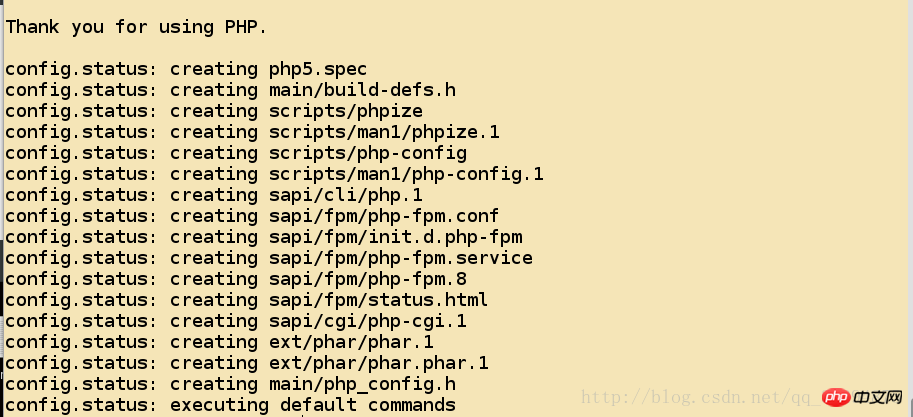
执行完成需要出现
之后执行
make命令
[root@server6 php-5.6.20]# make No log handling enabled - turning on stderr logging
Created directory: /var/lib/net-snmp/mib_indexes
Generating phar.phar
PEAR package PHP_Archive not installed: generated phar will require PHP's phar extension be enabled.
clicommand.inc
directorytreeiterator.inc
invertedregexiterator.inc
directorygraphiterator.inc
pharcommand.inc
phar.inc
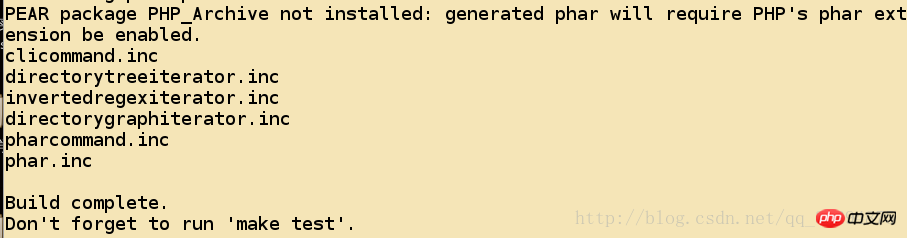
确保结果争取需要出现
之后执行
make install
[root@server6 php-5.6.20]# make installInstalling shared extensions: /usr/local/lnmp/php/lib/php/extensions/no-debug-non-zts-20131226/Installing PHP CLI binary: /usr/local/lnmp/php/bin/Installing PHP CLI man page: /usr/local/lnmp/php/php/man/man1/Installing PHP FPM binary: /usr/local/lnmp/php/sbin/
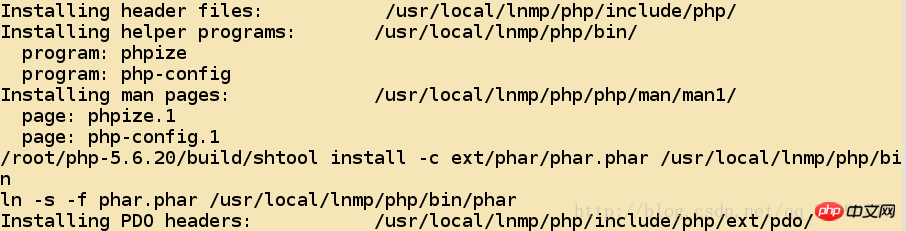
需要出现
对于配置文件进行修改
[root@server6 php-5.6.20]# cd /usr/local/lnmp/php/[root@server6 php]# cd etc/[root@server6 etc]# cp php-fpm.conf.default php-fpm.conf[[root@server6 etc]# cp ~/php-5.6.20/php.ini-production /usr/local/lnmp/php/etc/php.ini
修改,前面的数值表示行号
[root@server6 etc]# vim php.ini925  date.timezone = Asia/Shanghai1001 pdo_mysql.default_socket= /usr/local/lnmp/mysql/data/mysql.sock1150 mysql.default_socket = /usr/local/lnmp/mysql/data/mysql.sock1209 mysqli.default_socket = /usr/local/lnmp/mysql/data/mysql.sock

[root@server6 etc]# vim php-fpm.conf25 pid = run/php-fpm.pid
复制启动脚本
[root@server6 php-5.6.20]# cd sapi/fpm/[root@server6 fpm]# pwd/root/php-5.6.20/sapi/fpm
[root@server6 fpm]# cp init.d.php-fpm /etc/init.d/php-fpm[root@server6 fpm]# chmod +x /etc/init.d/php-fpm
启动服务并且查看状态
[root@server6 fpm]# /etc/init.d/php-fpm startStarting php-fpm done

修改
Nginx的配置文件
[root@server6 fpm]# cd /usr/local/lnmp/nginx/conf/[root@server6 conf]# vim nginx.conf

    location ~ \.php$ {
            root           html;
            fastcgi_pass   127.0.0.1:9000;
            fastcgi_index  index.php;
            fastcgi_param  SCRIPT_FILENAME  /scripts$fastcgi_script_name;            include        fastcgi.conf;
        }
测试修改后配置文件的正确性
[root@server6 conf]# nginx -tnginx: the configuration file /usr/local/lnmp/nginx/conf/nginx.conf syntax is ok
nginx: configuration file /usr/local/lnmp/nginx/conf/nginx.conf test is successful
[root@server6 conf]# nginx

* 查看你服务是否正常启动 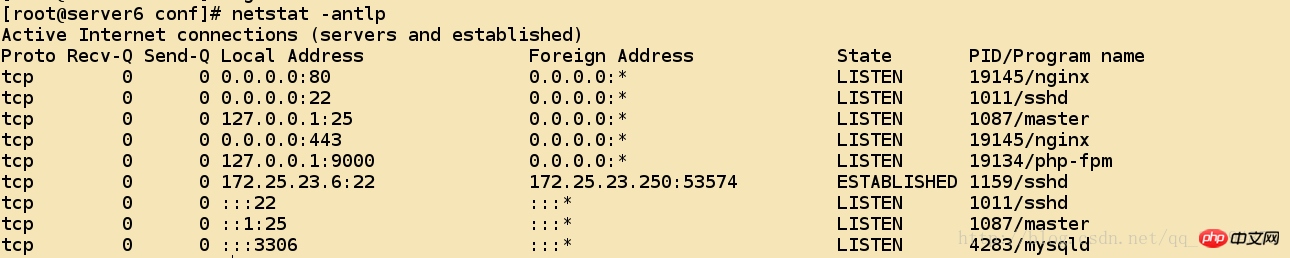
* 为php提供默认的页面
[root@server6 nginx]# cd html/[root@server6 html]# ls50x.html  index.html
[root@server6 html]# vim index.php
通过浏览器来访问测试
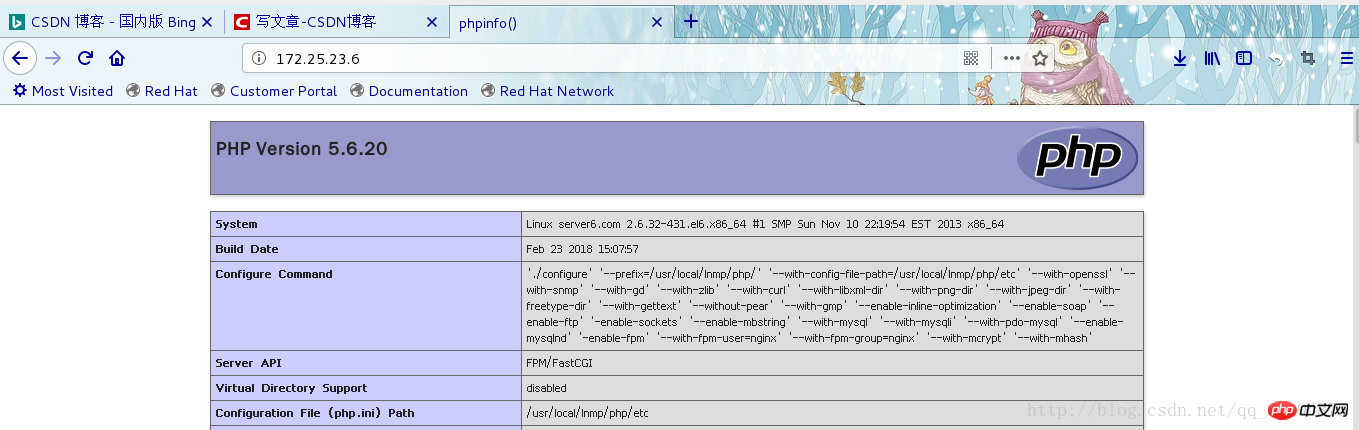
安装
Discuz论坛程序
[root@server6 ~]# unzip Discuz_X3.2_SC_UTF8.zip -d /usr/local/lnmp/nginx/html/[root@server6 ~]# cd /usr/local/lnmp/nginx/html/[root@server6 html]# mv upload/ bbs[root@server6 html]# cd bbs/[root@server6 bbs]# chmod 777 config/ data/ uc_client/ uc_server/ -R
通过浏览器进行配置
Discuz的欢迎页面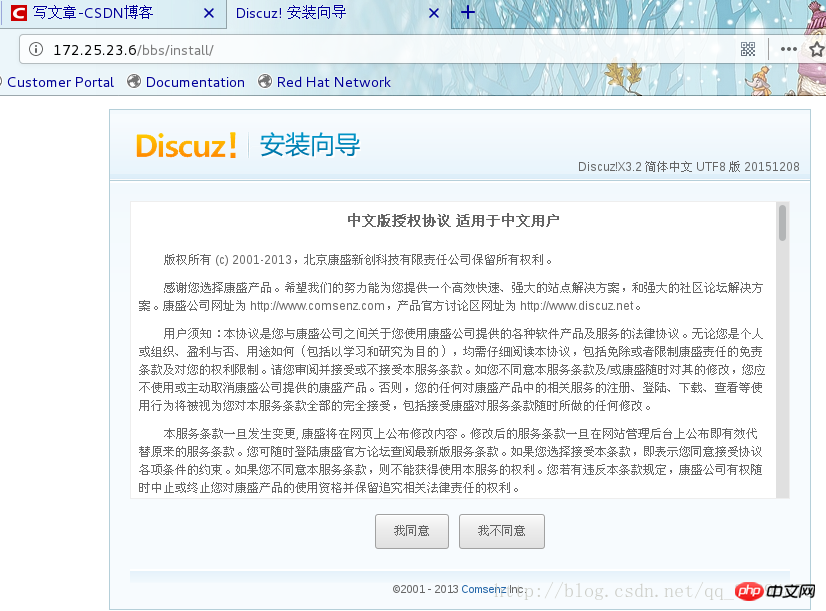
需要确保这个页面没有红色的
x出现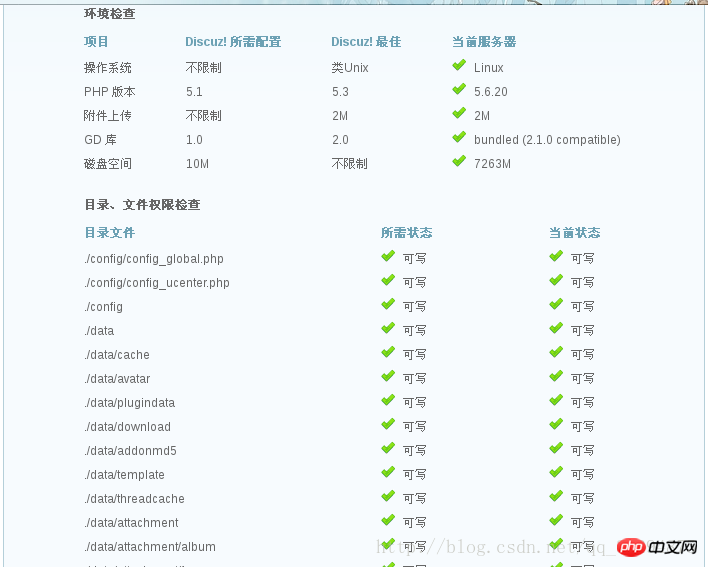
数据库连接成功的安装页面
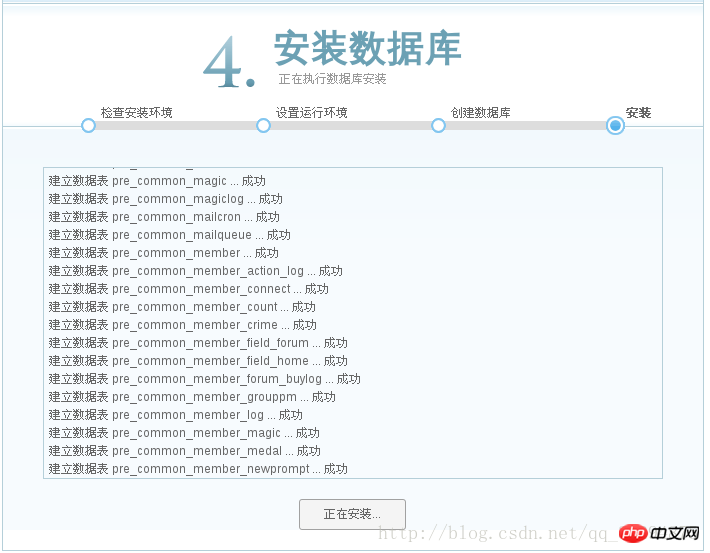
通过下面这个连接访问

去查看数据库多出来的信息
ultrax为Discuz建立的数据库;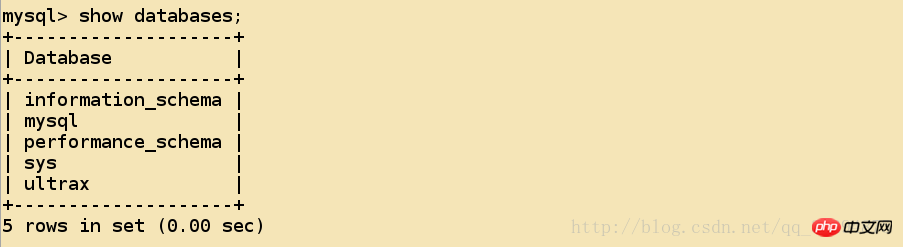
数据库里面表的信息
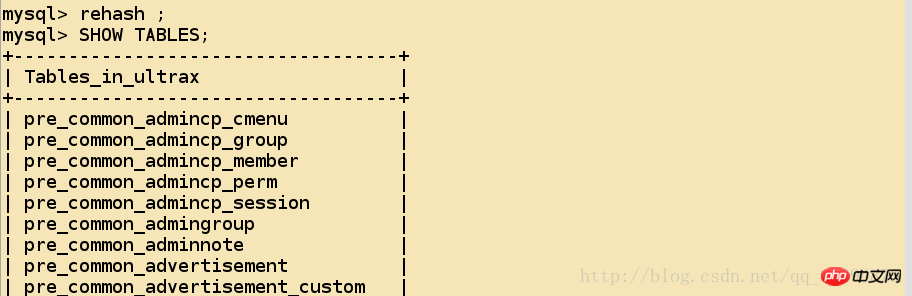
对于Nginx以及Mysql的编译安装
http://blog.csdn.net/qq_36294875/article/details/79352522
[MySQL5.7.11编译安装]
http://blog.csdn.net/qq_36294875/article/details/79344943[Nginx的编译安装以及简单的配置]
编译安装的环境
主机为172.25.23.6 hostname:server6.com 内核版本:2.6.32-431.el6.x86_64 使用软件包为php-5.6.20.tar.bz2 额外的软件包: libmcrypt-2.5.8-9.el6.x86_64.rpm libmcrypt-devel-2.5.8-9.el6.x86_64.rpm
执行
./configure中的错误-
错误:
立即学习“PHP免费学习笔记(深入)”;
configure: error: xml2-config not found. Please check your libxml2 installation.
解决:
[root@server6 php-5.6.20]# yum install -y libxml2-devel
-
错误:
立即学习“PHP免费学习笔记(深入)”;
configure: error: Please reinstall the libcurl distribution -
    easy.h should be in /include/curl/
解决
[root@server6 php-5.6.20]# yum install curl-devel -y
-
错误:
立即学习“PHP免费学习笔记(深入)”;
If configure fails try --with-vpx-dir=configure: error: jpeglib.h not found.
解决
[root@server6 php-5.6.20]# yum install -y libjpeg-turbo-devel
-
错误:
立即学习“PHP免费学习笔记(深入)”;
If configure fails try --with-vpx-dir=checking for jpeg_read_header in -ljpeg... yes
configure: error: png.h not found.
解决
[root@server6 php-5.6.20]# yum install libpng-devel -y
-
错误:
立即学习“PHP免费学习笔记(深入)”;
If configure fails try --with-xpm-dir=configure: error: freetype-config not found.
解决
[root@server6 php-5.6.20]# yum install freetype-devel-2.3.11-14.el6_3.1.x86_64 -y
-
错误:
立即学习“PHP免费学习笔记(深入)”;
configure: error: Unable to locate gmp.h
解决
[root@server6 php-5.6.20]# yum install gmp-devel-4.3.1-7.el6_2.2.x86_64 -y
-
错误:
立即学习“PHP免费学习笔记(深入)”;
configure: error: mcrypt.h not found. Please reinstall libmcrypt.
解决
libmcrypt-2.5.8-9.el6.x86_64.rpmlibmcrypt-devel-2.5.8-9.el6.x86_64.rpm[root@server6 php-5.6.20]# yum install ~/libmcrypt-* -y
-
错误:
立即学习“PHP免费学习笔记(深入)”;
configure: error: Could not find net-snmp-config binary. Please check your net-snmp installation.
解决
[root@server6 php-5.6.20]# yum install net-snmp-devel -y
进行编译
[root@server6 php-5.6.20]# ./configure --prefix=/usr/local/lnmp/php/ \> --with-config-file-path=/usr/local/lnmp/php/etc \> --with-openssl \> --with-snmp \> --with-gd \> --with-zlib \> --with-curl \> --with-libxml-dir \> --with-png-dir \> --with-jpeg-dir \> --with-freetype-dir \> --with-gettext \> --without-pear \> --with-gmp \> --enable-inline-optimization \> --enable-soap \> --enable-ftp \> --enable-sockets> --enable-mbstring> --with-mysql> --with-mysqli> --with-pdo-mysql> --enable-mysqlnd> --enable-fpm> --with-fpm-user=nginx> --with-fpm-group=nginx> --with-mcrypt > --with-mhash
执行完成需要出现
之后执行
make命令
[root@server6 php-5.6.20]# make No log handling enabled - turning on stderr logging
Created directory: /var/lib/net-snmp/mib_indexes
Generating phar.phar
PEAR package PHP_Archive not installed: generated phar will require PHP's phar extension be enabled.
clicommand.inc
directorytreeiterator.inc
invertedregexiterator.inc
directorygraphiterator.inc
pharcommand.inc
phar.inc
确保结果争取需要出现
之后执行
make install
[root@server6 php-5.6.20]# make installInstalling shared extensions: /usr/local/lnmp/php/lib/php/extensions/no-debug-non-zts-20131226/Installing PHP CLI binary: /usr/local/lnmp/php/bin/Installing PHP CLI man page: /usr/local/lnmp/php/php/man/man1/Installing PHP FPM binary: /usr/local/lnmp/php/sbin/
需要出现
对于配置文件进行修改
[root@server6 php-5.6.20]# cd /usr/local/lnmp/php/[root@server6 php]# cd etc/[root@server6 etc]# cp php-fpm.conf.default php-fpm.conf[[root@server6 etc]# cp ~/php-5.6.20/php.ini-production /usr/local/lnmp/php/etc/php.ini
修改,前面的数值表示行号
[root@server6 etc]# vim php.ini925  date.timezone = Asia/Shanghai1001 pdo_mysql.default_socket= /usr/local/lnmp/mysql/data/mysql.sock1150 mysql.default_socket = /usr/local/lnmp/mysql/data/mysql.sock1209 mysqli.default_socket = /usr/local/lnmp/mysql/data/mysql.sock

[root@server6 etc]# vim php-fpm.conf25 pid = run/php-fpm.pid
复制启动脚本
[root@server6 php-5.6.20]# cd sapi/fpm/[root@server6 fpm]# pwd/root/php-5.6.20/sapi/fpm
[root@server6 fpm]# cp init.d.php-fpm /etc/init.d/php-fpm[root@server6 fpm]# chmod +x /etc/init.d/php-fpm
启动服务并且查看状态
[root@server6 fpm]# /etc/init.d/php-fpm startStarting php-fpm done
修改
Nginx的配置文件
[root@server6 fpm]# cd /usr/local/lnmp/nginx/conf/[root@server6 conf]# vim nginx.conf

    location ~ \.php$ {
            root           html;
            fastcgi_pass   127.0.0.1:9000;
            fastcgi_index  index.php;
            fastcgi_param  SCRIPT_FILENAME  /scripts$fastcgi_script_name;            include        fastcgi.conf;
        }
测试修改后配置文件的正确性
[root@server6 conf]# nginx -tnginx: the configuration file /usr/local/lnmp/nginx/conf/nginx.conf syntax is ok
nginx: configuration file /usr/local/lnmp/nginx/conf/nginx.conf test is successful
[root@server6 conf]# nginx
* 查看你服务是否正常启动
* 为php提供默认的页面
[root@server6 nginx]# cd html/[root@server6 html]# ls50x.html  index.html
[root@server6 html]# vim index.php
通过浏览器来访问测试
安装
Discuz论坛程序
[root@server6 ~]# unzip Discuz_X3.2_SC_UTF8.zip -d /usr/local/lnmp/nginx/html/[root@server6 ~]# cd /usr/local/lnmp/nginx/html/[root@server6 html]# mv upload/ bbs[root@server6 html]# cd bbs/[root@server6 bbs]# chmod 777 config/ data/ uc_client/ uc_server/ -R
通过浏览器进行配置
Discuz的欢迎页面需要确保这个页面没有红色的
x出现数据库连接成功的安装页面
通过下面这个连接访问
去查看数据库多出来的信息
ultrax为Discuz建立的数据库;数据库里面表的信息
相关推荐:




